
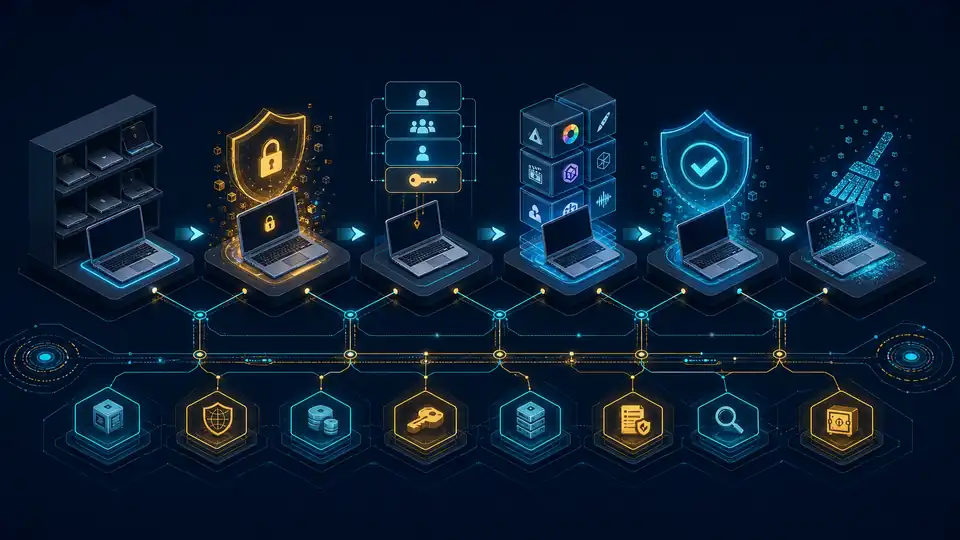
A secure creative workstation baseline is a versioned configuration for identity, operating system, encryption, applications, local storage, endpoint security, backup and monitoring. It gives a design or video team a known-good starting point without pretending that every Adobe workload needs the same hardware or policy.
This technical guide covers architecture, implementation mechanics, failure modes, testing and monitoring for Windows creative workstations. Adapt the controls to the applications, device models and licences in the real environment. Validate changes with representative projects before broad deployment.
Define the workstation contract
Start with a small machine-readable record rather than an image-building document nobody can compare with reality.
Keep desired state separate from discovery data. Inventory reports should show what is present; the baseline states what should be present. A device can then be classified as compliant, exception-approved or unknown.
Use role variants, not one universal image
Create a common foundation and a small number of variants:
- Designer: creative applications, tablet driver, colour workflow and moderate local cache.
- Video editor: larger controlled scratch volume, approved GPU driver and media plug-ins.
- Shared render station: named-user access, restricted administration, managed service accounts and aggressive local clean-up.
Avoid a bespoke build for every person. Put differences in a versioned assignment table with an owner and expiry. If a plug-in is needed for one client project, treat it as an exception package rather than adding it permanently to the common baseline.
Identity and privilege design
Join the device to the organisation’s approved identity and management plane. Use an individual daily-work account and standard-user privilege where the applications permit it. Keep administrative elevation separate and time-bounded.
Map every application identity to a business owner. Adobe Admin Console supports organisation-managed user and product assignment workflows; the exact choices vary by identity and storage model. Test onboarding, licence assignment, content transfer and removal in the tenant rather than assuming the same behaviour across plans.
For shared workstations, do not use one common administrator login. Each user should have an attributable identity. Define profile clean-up carefully so cached project data is removed only after the approved business copy is verified.
Apply device security as controlled policy
Microsoft Intune security baselines are groups of preconfigured Windows settings that can be customised and assigned to managed devices. Microsoft also warns that overlapping baseline types can contain the same settings with different values, so review conflicts and validate the effective configuration before production rollout.
Use a layered policy model:
- Operating-system security baseline.
- Endpoint protection and firewall policy.
- Disk-encryption policy.
- Application-control or allowlisting rules where operationally suitable.
- Role-specific exceptions with owner and expiry.
Assign the baseline first to a pilot device group. Record settings that conflict with GPU acceleration, network discovery, plug-in installers or media workflows. Do not solve a conflict by disabling a whole control if a narrower exception is available.
Configure encryption and recovery
Microsoft describes BitLocker as full-volume encryption that helps address data exposure from lost, stolen or inappropriately decommissioned Windows devices. Confirm Windows edition, TPM, firmware and recovery requirements for the hardware fleet.
Escrow recovery material in the organisation’s approved system and restrict who can retrieve it. Test recovery on a pilot device before deployment. For workstations with a separate scratch volume, decide whether that volume may contain client material; if it can, include it in the encryption and decommissioning design.
Do not store the recovery key in a text file on the same device. Record recovery events and review why the device entered recovery mode.
Package creative applications and dependencies
Maintain an application manifest with product, approved version, package source, publisher, install method, licence owner, dependency, test project and rollback action.
Use vendor-controlled package sources and verify signatures where supported. Avoid links to unversioned installers in handover notes. Separate application updates from plug-in updates so one rollback does not disturb the whole workstation.
Design local storage as a cache, not an archive
Define a local work root with quotas, ownership and clean-up states. A useful model is:
The business copy remains in the approved project store. Local storage improves performance but should not become the only current copy. Synchronisation and backup are different controls, so document which system handles version history, deletion recovery and independent restore.
Before clean-up, verify the destination path, file count or manifest, expected latest files and owner acceptance. A script that deletes by age alone can remove work that failed to sync.
Handle large files and network paths deliberately
Measure representative project operations: open, save, relink, render and export. Record source path, protocol, file size, network latency, available local disk and elapsed time. This gives support a repeatable comparison after a driver, application or storage change.
Keep mapped paths and permissions consistent. If users can save to personal sync folders, removable media and the shared project store, the baseline should state which locations are supported and how exceptions are reconciled.
Endpoint protection exclusions need evidence
A creative application may trigger a performance complaint during scanning, rendering or cache creation. Do not apply a broad process or folder exclusion based on an anecdote.
- Reproduce the issue with a known project.
- Measure CPU, disk and application timing.
- Confirm whether the security agent is the bottleneck.
- Ask the security owner to approve the narrowest supported exclusion.
- Limit it by process, path or role where the product supports that design.
- Record owner, reason, expiry and retest date.
Never exclude the general downloads folder, user profile or entire project volume simply to make a benchmark faster.
Build monitoring around drift and user impact
Collect useful device state without copying project content. Monitor:
- baseline and management check-in;
- operating-system and application version;
- encryption state and recovery events;
- endpoint-protection health;
- firewall and patch state;
- local disk and scratch-volume free space;
- backup or sync exceptions;
- hardware warnings and thermal events;
- approved GPU and peripheral driver versions;
- administrator and exception assignments.
Alert on conditions with an owner and action. A disk-space alert should identify the affected volume and supported clean-up route. A baseline conflict should show the setting, policies involved and pilot group.
Test the failure paths
- A user signs in before application and licence assignment completes.
- A GPU-driver update breaks a representative render.
- A plug-in requires elevation during a client deadline.
- The project store is unavailable while local work continues.
- Synchronisation reports healthy but one linked asset is missing.
- The scratch volume fills during export.
- The device enters BitLocker recovery after firmware work.
- The endpoint agent blocks or slows a controlled test operation.
- A freelancer’s account is removed before cloud content transfer.
- A reset starts before project-owner acceptance.
For each case, verify the detected state, alert, business impact, recovery action and evidence. Use synthetic or approved test assets, not live confidential client work.
Deployment sequence
- Inventory device roles, applications, peripherals and project stores.
- Write the common baseline and role variants.
- Create identity, encryption and endpoint policies.
- Package applications and controlled dependencies.
- Define cache, sync, backup and clean-up rules.
- Build a representative test project for each role.
- Pilot with a small group and capture conflicts.
- Correct the baseline rather than normalising manual fixes.
- Deploy in waves with rollback criteria.
- Monitor drift, exceptions and user-impact measures.
Operational hand-off
The baseline is ready when support can answer five questions: what should this workstation look like, how does it differ, which project operation proves it works, which exceptions are approved, and how can it be rebuilt without losing business-owned files?
For endpoint operations, review Sakal Network’s managed IT services and managed cybersecurity services. The managed services options on Sakal Shop provide a commercial starting point for supported device fleets.